For personal use, we most often turn to remote desktop when our loved ones need help with their computers. However, there are many more ways to use remote desktop in your own home. Below, we present 11 uses, including some less conventional ones. You can start by downloading the free version of Remotly (https://remotly.com/download) and trying it out. The availability of individual features depends on your chosen plan.
1. Provide technical support to family and friends.
If you are often the only person in your family who knows their way around computers, you probably find yourself helping your loved ones, especially older relatives. Remote desktop software lets you quickly diagnose and resolve technical problems without needing physical access to their devices. Your loved ones can launch the application easily and intuitively, then share their screen with you.
All they need to do is download the app from the Remotly website (https://remotly.com/download) and install it. The person you are helping does not need to register or create a user account. They simply give you the unique, ultra‑strong, 14-character connection code displayed in their app over the phone, then accept your incoming connection.
Remember to arrange the connection with your loved one in advance and tell them the email address you will use to connect, so they can be sure it is you who will be controlling their computer. The application includes voice chat, which means you can talk and explain what you are doing during the session whenever necessary.

2. Check the progress of a task running on your computer from your phone at any time.
Remote desktop is not just about PC‑to‑PC connections. There is also a mobile app for Android, iPhone and iPad that lets you control your computer, launch applications and check the progress of tasks. With the app, you can access the resources on your personal or work computer at any time.
Have you started a complex calculation on a remote computer? Great — you can now check the percentage completed and the result on your phone whenever you want.
Have you started installing software or updating the operating system and are unsure how far it has progressed? No problem: in the Remotly PC app settings, you can enable “Start with Windows”. Although a restart will interrupt the remote connection, the application will start with Windows at the login screen, allowing you to log in to the computer remotely.
3. Access PC files and applications that do not run on Android or iOS.
Do you urgently need to check some information on your phone or send a document stored locally on your computer? You can connect to your computer from an Android phone or iPhone at any time and access files you do not have in the cloud, along with applications that do not run on Android or iOS devices. Contrary to popular belief, there are many such applications: technical software, PC games, system tools, locally installed office suites and many others.
How does this work in practice? On a computer and network that support Wake‑on‑LAN, you can configure remote wake‑up to wake a sleeping computer and then access it.
If you left your computer locked, you can also unlock it remotely, but you first need to enable “Start with Windows” in the Remotly app’s general settings.

4. Use your Windows applications on a Mac or tablet.
Do you have a photo editing, design, home budgeting or learning application on your computer that you cannot run on the device you have taken on your trip? You can connect to the computer you left at home from a Mac, iPad, phone or Android tablet at any time. By streaming the remote desktop, you can access your applications and the projects saved on your computer. The application continues to run on your Windows PC while you control it from the device you have at hand. To protect your privacy in unattended mode, use the remote keyboard lock and screen blanking.
You can also use your tablet as an additional monitor for your PC. If you draw or retouch photos, the virtual remote stylus transmits pressure, tilt and orientation to your computer, letting you work on your tablet in a graphics application running on the PC.
5. Watch videos remotely.
Did you not have time to finish watching your own video on your computer? Would you like to show your child a family recording from a holiday? You can do it on your phone using remote desktop. With the mobile remote desktop app, your computer does the work of playing the video, while your phone displays the streamed image. Streaming at up to 4K with HDR support on compatible devices makes viewing enjoyable, while hardware decoding and power‑saving technology reduce processor load and battery consumption on your laptop or phone.
6. Play your own games remotely on your own computer.
Would you like to use the power of your gaming computer while playing on another, less powerful computer or laptop? You can now do this with remote desktop. Simply install Remotly on both devices and connect to your computer through the app. This way, you use your own games and accounts that you are entitled to access. Remotly has features that help you make the most of the remote computer’s power, stream high‑quality video (up to 240 fps, up to 6K, HDR and 10-bit colour, depending on the plan and configuration) and achieve the lowest possible latency, with unlimited P2P connections. You can connect your favourite gamepad, use a keyboard or mouse and play as if you were physically at the remote computer. Hardware video encoding and decoding use the GPU’s capabilities to deliver very low latency.
7. Play PC games on your phone at any time.
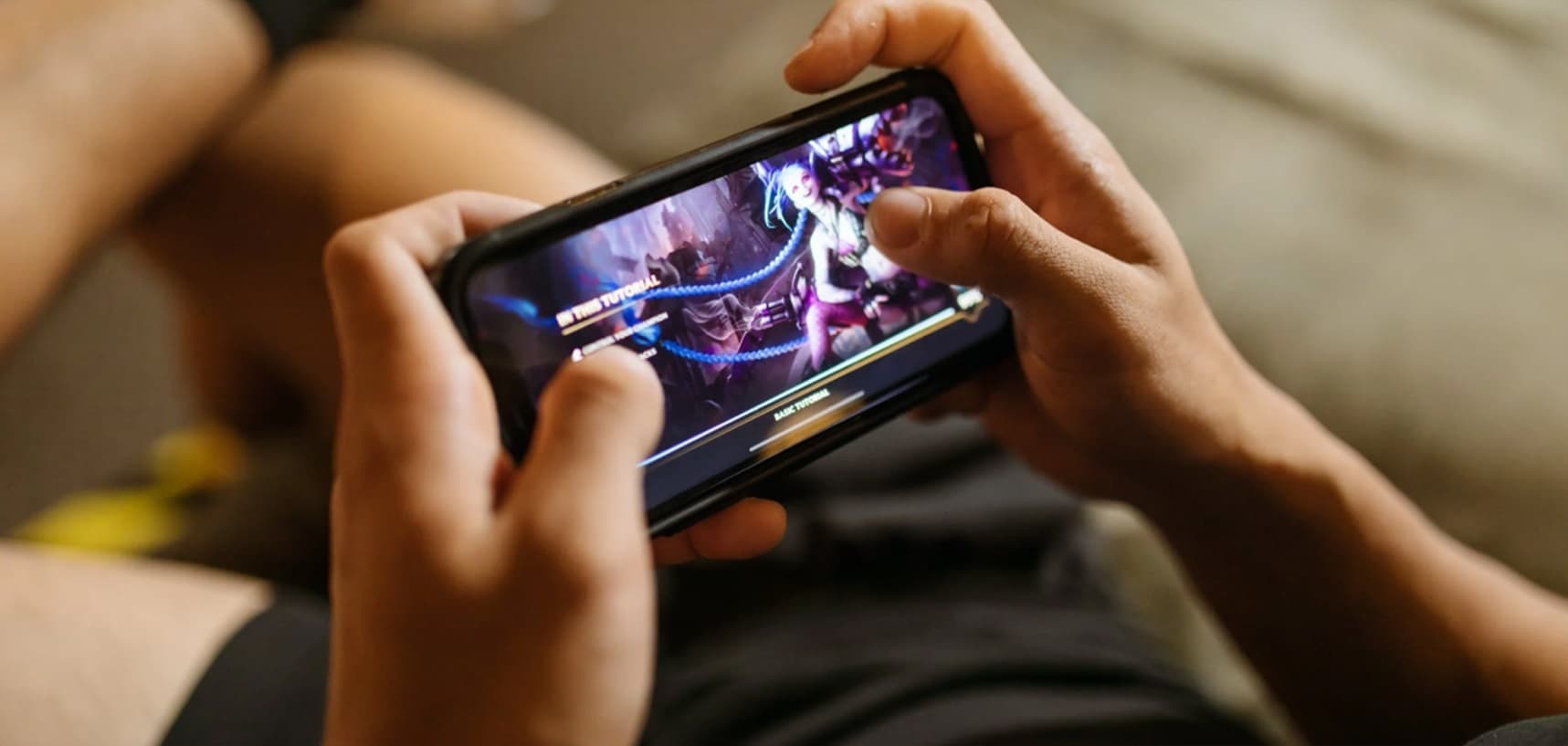
As an enthusiastic gamer, you have probably been late for an appointment because the action in your game made it hard to tear yourself away from the console. You have probably also wished you could play when you had time during a trip, on your commute to work or university, on a bus or train, or while waiting in a queue, but had no way to do so. Now imagine how much time you could save if you could use those moments to… continue your game on your phone. With the Remotly app on an Android phone or tablet, iPhone or iPad, you can connect to your own computer and play wherever you have internet access, without needing the latest or most advanced mobile device. To play remotely, you need your computer switched on with Remotly running and a stable internet connection. The mobile app can stream even demanding games such as Cyberpunk and The Witcher: the game runs on your computer while you control it from your phone.
This is made possible by 10-bit streaming, up to 120 fps, resolutions up to 4K, HDR support on compatible devices and very low latency, together with unlimited P2P connections and cloud servers when a P2P connection is not possible. If you are a fan of vintage games, you can also connect to computers running older versions of Windows — Remotly even supports Windows 7. Try it for yourself! To learn more about Game Mode, visit: https://remotly.com/tutorials/basics‑of‑playing‑on‑android.
8. Travel without a computer.
Whether you travel often or rarely, with a personal or work computer, you have probably worried that your device could be damaged in your luggage, stolen from your suitcase or hotel, and that you could lose not only the computer but also the important data and resources stored on it. At other times, your computer may simply have been too large to fit in your luggage or too heavy to take along. Remote desktop software can help with this too.
You can breathe a sigh of relief because your computer is safely at home and your luggage is light, while still avoiding feeling limited: Remotly lets you access your remote computer through a direct P2P connection or, when that is not possible, through the Connect Anywhere cloud. You do not need to worry about the security of your remote connections either.
All Remotly connections are encrypted in line with leading global standards (end‑to‑end, AES-256, RSA-4096, TLS 1.2/1.3), while dedicated mechanisms — an ultra‑strong, 14-character connection code, IP scoring, VPN warnings and a system notification of an incoming connection, automatic blocking of attempts to guess the password, and unattended‑mode protections — help prevent unauthorised connections.
9. Use a computer together with Multi‑Join.
Do you have interesting resources on your computer that you would like to share with family or friends you trust? In Remotly, you can invite them into a shared session using the Multi‑Join feature, which is now available. Up to four remote users can connect to a single computer at the same time, and the person at the host computer can take part too. Invite participants using the connection code or invitations: there is no need to give them your account password.
You can play games with local multiplayer together, look through family photos, watch your own recordings or work on the same project. Remotly supports up to four gamepads, and voice chat lets you talk while having fun together. Choose a game whose mode and rules allow this type of gameplay: every participant uses the same game running on the host. To enable Multi‑Join, open Settings → General on the host computer and activate the feature.

10. Stream your remote camera to check on your pet.
When you go away for the weekend or spend time away from home, you probably wonder how your pet is doing. You can check using a remote camera view. How? Simply position your laptop or computer’s camera so it can see your pet’s cage, sleeping spot or automatic feeder, then connect to your home computer through Remotly. You can connect from another computer, an Android device, iPhone or iPad.
To avoid worrying that your pet might interfere with the keyboard or that someone else could access your computer while you are away, you can use screen blanking, audio muting and the keyboard and mouse lock. Local control of your remote computer will be blocked, while you can still use it and check on your pet. More information and a detailed tutorial are available here: https://mirillis.com/blog/en/how‑to‑watch‑your‑pet‑remotely‑webcam‑streaming/.
11. Use a computer without a connected monitor
Do you have an extra computer at home for storing files, editing photos or working on your own projects, but do not want another monitor taking up space? With Remotly, you can access it remotely even when no physical display is connected. Virtual Display Adapter creates a virtual monitor whose image you can view on your laptop, Mac or tablet.
Simply install the virtual display driver and set up remote access to the computer in advance. You can then launch applications, browse documents and complete your tasks without moving a monitor between devices. It is a convenient way to use an additional PC that can stay in an out‑of‑the‑way location and remain accessible whenever you need it.
For more information, visit: https://remotly.com/
Sources
Information checked on 27 November 2026.
Remotly — Technical Specifications
Remotly — Security Policy and Technology Overview
Remotly Community — Multi‑Join