Remotly, TeamViewer Tensor, AnyDesk, Chrome Remote Desktop and Microsoft Remote Desktop (RDP) — a comparison of use cases, strengths and limitations.
Working remotely on an office computer, helping a customer and making applications available to an entire team call for different tools. When choosing remote desktop software, it is worth looking beyond price to consider image quality, access management and infrastructure requirements.
We have selected five solutions for different scenarios. This is an editorial comparison by the Remotly team, based on publicly available information from the vendors, rather than a ranking of performance test results. The order does not mean that one product wins in every use case. Information current as of 9 November 2026.
Which solution suits your needs?
| Solution | Worth considering when… | What to account for |
|---|---|---|
| Remotly | You want advanced security, ultra‑low latency, high image quality and a self‑hosted relay at no additional licence fee. | Clients: Windows, macOS, iOS and Android. Host: Windows; macOS and Linux hosts planned for mid-2027. |
| TeamViewer Tensor | You manage remote access in a large organisation. | Licensing and add‑ons need to match your requirements. |
| AnyDesk | You support users across different operating systems. | Users and connections have separate limits. |
| Chrome Remote Desktop | You need simple access to your own computer or ad hoc assistance. | Remote support requires renewed confirmation every 30 minutes. |
| Microsoft Remote Desktop (RDP) | You need access to your Windows PC over a local network or corporate VPN. | The host requires a supported Windows edition, such as Pro. Windows Home cannot accept incoming RDP connections. Access from outside the network requires configuration. |
1. Remotly — advanced security and ultra‑low‑latency streaming
Remotly combines multilayer remote access protection, high‑quality streaming and self‑hosted relay servers included in every business plan at no additional licence fee. It is a strong option for companies that want to support customers securely, manage computers and work on powerful workstations.
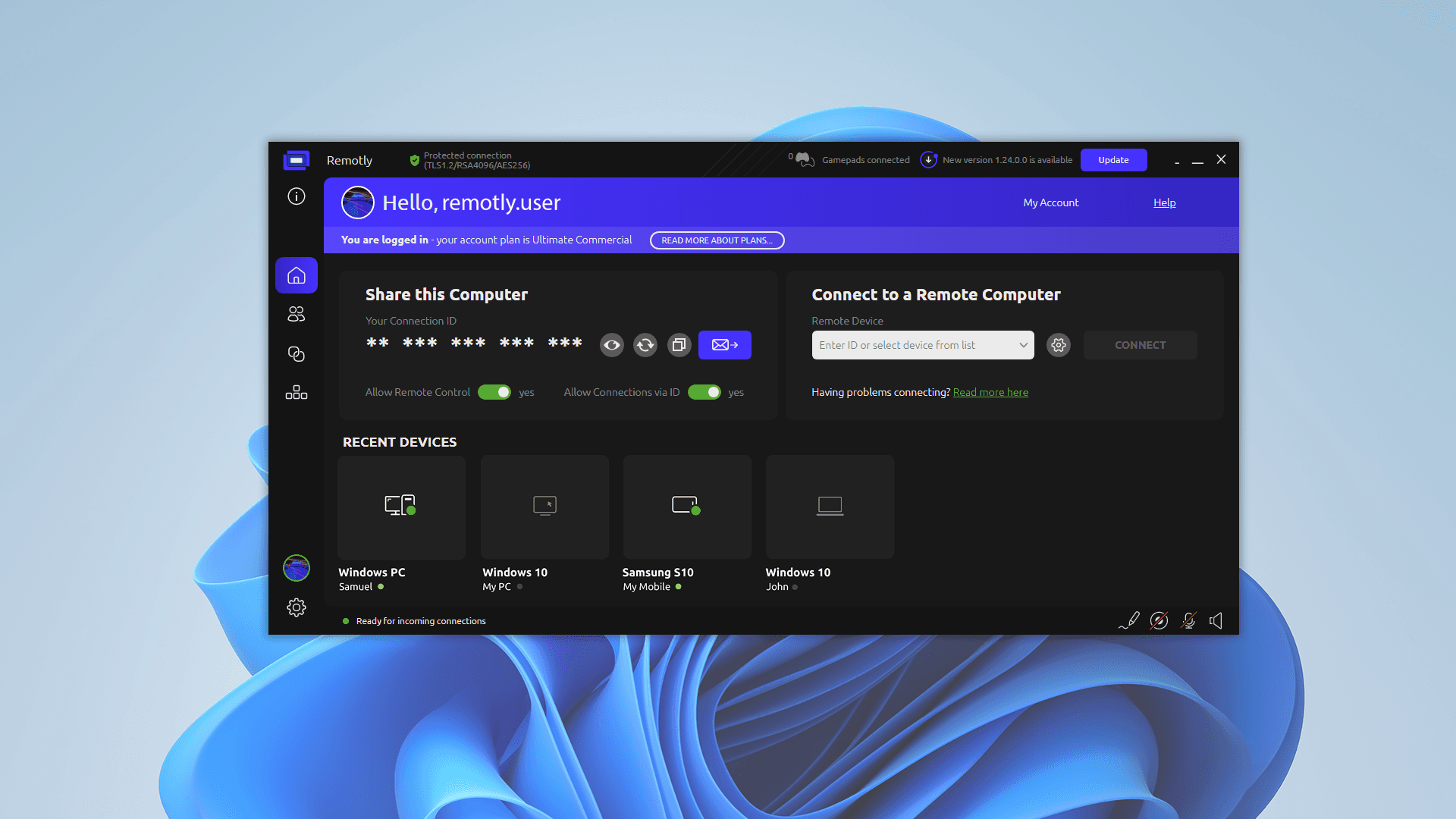
Built around image quality and responsiveness
Remotly technology captures images directly from the graphics card and uses hardware acceleration. Hardware encoding on the host and decoding on the client reduce CPU load and video processing time. This enables ultra‑low‑latency streaming and a fast response to mouse and keyboard input — important for CAD, video editing and game testing. Actual responsiveness also depends on the network and hardware.
Remotly supports resolutions up to 6K, HDR, 10-bit colour, full 4:4:4 chroma and up to 240 fps. Sharp text, detailed images and smooth motion make remote desktop software useful for much more than basic support tasks. Available settings depend on the plan and configuration; macOS and mobile clients support up to 120 fps.
Self‑hosted relays with no additional licence fee
With Remotly, self‑hosted relay infrastructure is not reserved for individually priced enterprise deployments. Every business plan includes private relays: one server with Pro, and unlimited servers with Admin, Support and Ultra‑High Quality. This is a significant feature of the offering: companies can control the route of relayed session traffic without purchasing a separate server licence.
The relay can run on Windows, Linux or Raspberry Pi, on premises or in a cloud of your choice. It forwards encrypted session data but cannot read it. By comparison, AnyDesk offers a separate On‑Premises option maintained by your own IT team. These deployments have different scopes — a private relay forwards traffic rather than hosting the entire platform independently.
Key streaming and availability benefits
- Ultra‑low latency through GPU capture and hardware‑accelerated video processing.
- Up to 6K HDR, 10-bit colour and 4:4:4 chroma — for tasks that require clear detail and high image quality.
- Self‑hosted relay servers in every business plan, with no additional licence fee for this feature.
- Client apps for Windows, macOS, iOS and Android — access from a computer, phone or tablet.
Remotly — security at multiple levels
Protecting remote access goes beyond encryption. Remotly combines transmission security with device authorisation, connection risk assessment, permission controls and the option to route sessions through your own infrastructure.
Security benefits
- End‑to‑end encryption: AES-256 protects data streams, TLS 1.2/1.3 secures transport, and RSA-4096 is used for key exchange and authorisation.
- Private relays without access to session content: relayed traffic can pass through a company‑controlled server, while the relay has no access to decryption keys.
- Incoming connection verification: device authorisation, IP reputation assessment and VPN connection warnings help users evaluate access requests.
- 14-character codes and access protection: safeguards against code‑guessing attempts, with options to hide the code or disable code‑based connections.
- Session permission controls: view‑only mode, full control or a disabled clipboard let you restrict permissions to suit the task.
- Privacy during unattended access: remote screen blanking and the ability to block the local mouse and keyboard.
- Organisation‑restricted QuickSupport: access can be limited to your own company’s technicians. The user approves the session and can end it at any time.
- Accountability and corporate identity: connection history, session recording and Microsoft Entra ID integration help organise and oversee team activity. Availability depends on the plan.
Host availability
The host is currently available for Windows. Host versions for macOS and Linux are planned for mid-2027. You can already connect to a remote computer using client apps for Windows, macOS, iOS and Android.
Pricing and who it is for
The Pro plan costs PLN 29 excluding VAT per user per month when billed monthly. Every business plan includes a 30-day trial with no payment card required. Remotly is designed for small, medium‑sized and large businesses, as well as corporations. It is worth testing if you want to combine strong access protection with responsive work on a remote Windows workstation — from helpdesk support to demanding creative applications.
2. TeamViewer Tensor — access management for large businesses
TeamViewer Tensor is designed for large organisations that want to combine remote support with corporate access policies and existing IT systems. The vendor offers integrations with Microsoft Intune, ServiceNow and Salesforce, among others.
Pros
- SSO links sign‑in to a corporate identity provider, such as Microsoft Entra ID.
- Conditional Access lets administrators define access rules for users, groups and devices, including time restrictions.
- Extensive integrations, logs and support for IT and OT environments support large deployments.
Cons and limitations
- Conditional Access availability depends on licensing: the documentation specifies the relevant add‑on or Tensor Pro and Unlimited plans.
- Configuring identity and access rules requires administrative work; this level of functionality may be unnecessary for occasional connections. This assessment follows from the deployment model.
Pricing and who it is for
Tensor pricing requires contacting sales. Consider it when integrations, central policies and access management across multiple departments or locations are your priorities.
3. AnyDesk — access across multiple operating systems
AnyDesk offers apps for Windows, macOS, Linux, Android and iOS, among other platforms. App availability on an operating system does not imply identical remote control capabilities on every platform.
Pros
- A wide range of supported platforms makes it easier to work in mixed environments.
- The Standard plan includes file transfer, session recording, privacy mode and a company‑branded app, among other features.
- An On‑Premises option is available, maintained by your own IT team.
Cons and limitations
- A multi‑user plan does not provide the same number of simultaneous connections: Standard starts with one, while Advanced starts with two.
- Additional connections and the on‑premises option need to be factored into the budget. On‑Premises also makes the company responsible for maintaining the infrastructure.
Pricing and who it is for
Compare the offering by the number of connections, users and devices. The price list displays monthly equivalents of annually billed plans. AnyDesk is worth considering when supporting different operating systems and when client customisation is important.
4. Chrome Remote Desktop — simple computer access
Chrome Remote Desktop provides access to your own computer and lets you offer ad hoc assistance to someone else. You use a web interface on your computer, while a host component must be installed on the remote machine. Google documents host setup for Windows, macOS and Linux.
Pros
- A straightforward way to connect to your own computer and access its files and applications.
- Ad hoc assistance through a one‑time code, approved by the person sharing the computer.
- Encrypted sessions; Google also provides administrative policies to control use of the service.
Cons and limitations
- In remote support mode, the user must confirm continued sharing every 30 minutes. This restriction applies to that mode, rather than to every session accessing your own computer.
- Approving assistance grants access to the entire computer, including its applications and files. It does not share just a single application.
- Business deployments need to account for Google accounts and organisational policies. The simplicity of an individual connection should not be confused with a complete helpdesk workflow.
Cost and who it is for
The service is available without a separate remote desktop subscription. It is a reasonable option for basic access and occasional assistance; auditing requirements and team workflows should be assessed separately.
5. Microsoft Remote Desktop (RDP) — remote access to a Windows PC
Microsoft Remote Desktop lets you access a Windows computer’s applications, files and resources from another device. The connection uses the RDP protocol. It is worth considering for regular access to your own office computer.
Pros
- Built‑in host functionality in supported Windows editions, including Pro, Enterprise and Education.
- Access to the desktop and installed applications without installing a separate remote control tool on the host.
- Options to specify authorised users and use Network Level Authentication (NLA).
Cons and limitations
- Windows Home can be used to initiate connections, but cannot act as a host accepting incoming RDP connections.
- Access from outside the local network requires network configuration. Microsoft recommends using a VPN rather than exposing the computer directly to the internet.
- Access, permissions and firewall configuration need to be included in deployment planning. This may require more preparation than an application designed for ad hoc support.
Pricing and who it is for
The feature is available in supported Windows editions. Deployment costs may include a Windows edition upgrade, a VPN, configuration and administration. Consider it when you need regular access to a Windows PC and have a suitable network environment in place.
How to choose remote desktop software in 2026
Start with a specific task. If you want advanced security, ultra‑low latency, high image quality and a self‑hosted relay included in the plan, try Remotly. For extensive corporate integrations, take a look at Tensor. If your team supports multiple operating systems, compare AnyDesk. For basic access, consider Chrome Remote Desktop. If you need regular access to a Windows PC over a local network or corporate VPN, consider Microsoft Remote Desktop (RDP).

Before buying, test the tool on real computers and connections: with your usual number of monitors, corporate VPN and everyday applications. Check how permissions are granted and revoked, and the cost of supporting the whole team. A per‑user rate alone does not show the cost of additional connections, infrastructure or maintenance.
Does a self‑hosted relay replace a fully on‑premises environment?
A server that forwards session traffic should not be confused with independently hosting the entire platform. If complete independence from the vendor’s services is required, authentication, device registration and connection establishment need to be verified separately.
Try Remotly in your own environment
Want to compare image quality, ease of use and self‑hosted relay capabilities? Start a 30-day Remotly trial and test the solution on your team’s computers.
Sources — official vendor websites
Information checked on 9 November 2026. Features, licence scope and prices may change. Technical specifications are based on vendor statements.
2. Remotly Desktop — features and platforms
6. Tensor — Conditional Access
10. Google — Chrome Remote Desktop instructions
11. Chrome Remote Desktop — product page
12. Google — controlling use of the service
13. Microsoft — enabling Remote Desktop and host requirements
14. Microsoft — accessing your PC from outside the local network
15. Remotly Mobile — client platforms