All tutorials

Getting started

Remote PC control basics with Remotly for PC

Learn the basics of remote Windows desktop and application control with the Remotly app for PC.

Remote PC control basics
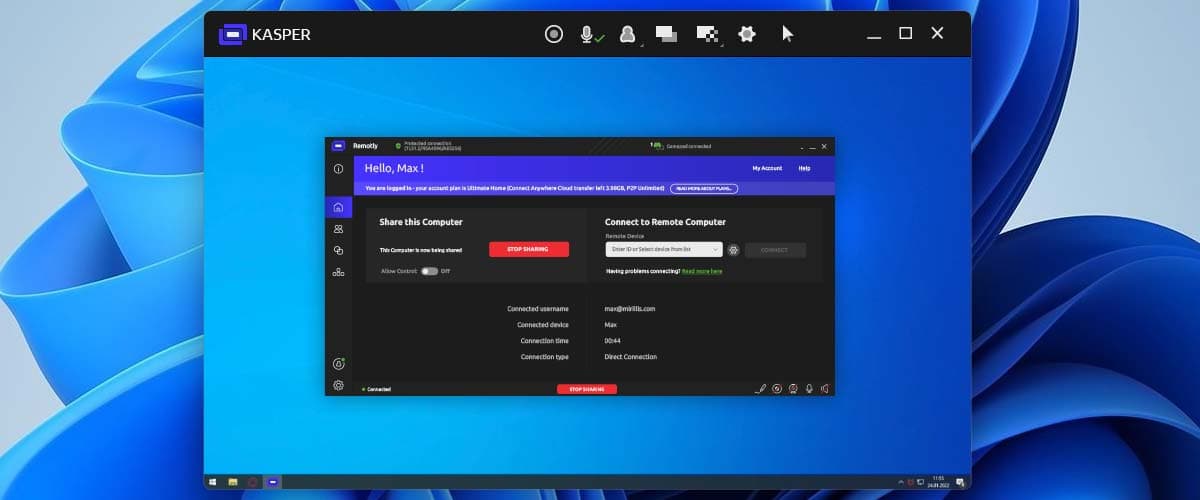
Remote session window

After a successful connection Remotly opens a new window with audio and video from the remote PC. Move your mouse over the video area to control it — all mouse and keyboard actions work as if you were sitting in front of the remote PC. To switch control back to your local PC simply move the mouse out of the Remotly window.

Windowed mode

In windowed mode a few buttons at the top right of the Remotly window give quick access to the most important functions:

  • Microphone for voice chat
  • User Options menu to lock, disconnect or send the Ctrl + Alt + Del key sequence
  • Switch monitor button for multi‑monitor setups
  • Quality settings
  • Application settings
  • Game Mode — a special mode designed to control games
  • Mute On/Off to mute audio in the Remotly app
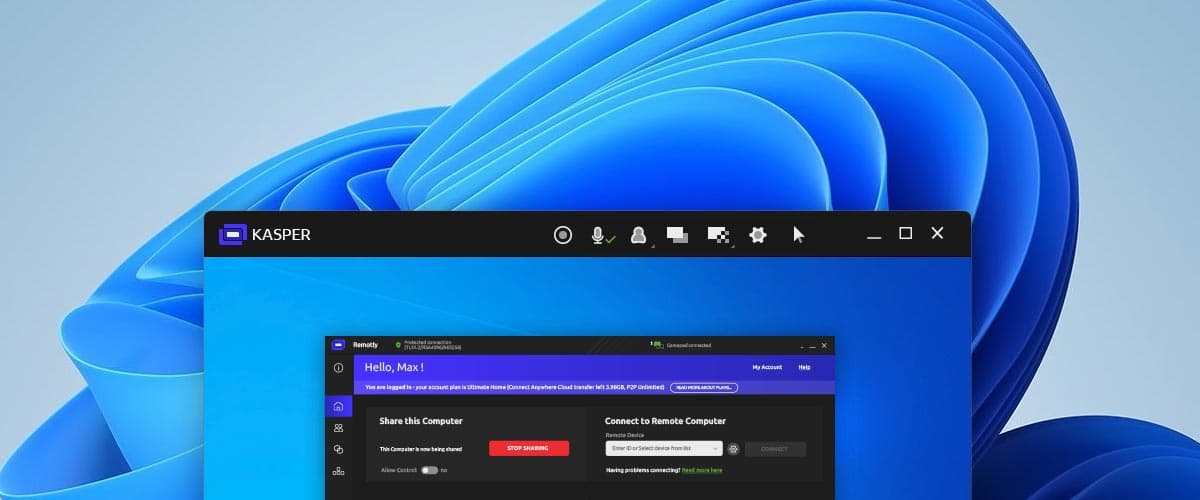
Windowed mode toolbar

Fullscreen mode

In fullscreen mode all control buttons are on a panel at the top of the screen.
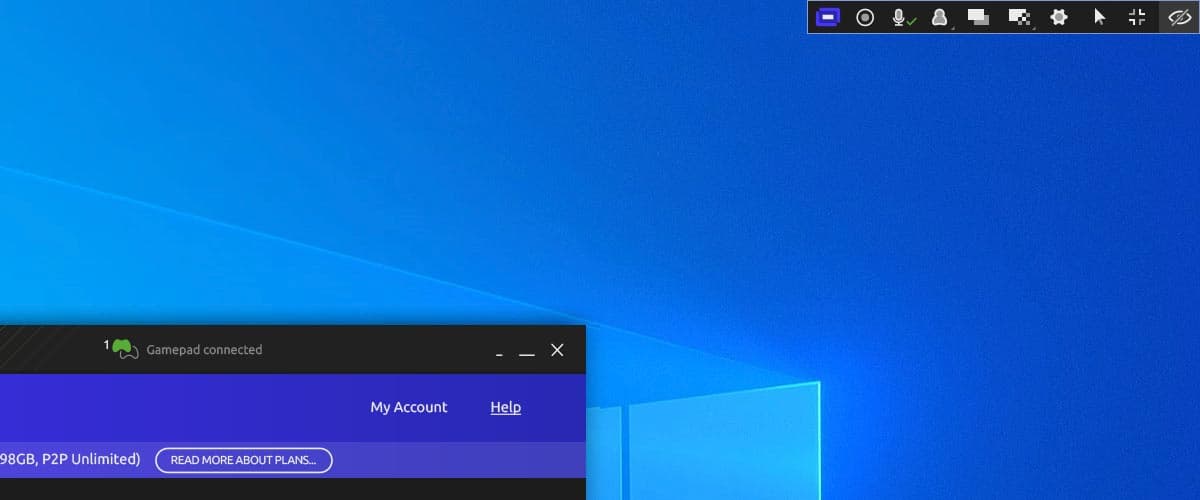
Fullscreen control panel

If the panel is not visible press the default Ctrl + M hotkey. Use the Hide control panel button to hide it, and drag the Remotly logo horizontally to move it. In fullscreen games Remotly hides the panel automatically — press Ctrl + M to show it and switch control back to your local PC.

This website uses cookies to improve your experience while you navigate through the website. Out of these, those that are categorized as necessary are stored on your browser and are used to run basic functionalities of the website.

We also use third‑party cookies that help us analyze and understand how you use this website. They will only be stored in your browser with your consent and you have the opportunity to opt out of them. However, opting out may affect your browsing experience.

NecessaryAlways active

Necessary cookies are absolutely necessary for the website to function properly. These cookies ensure basic functionalities and security features of the website on an anonymous basis.

CookieRetention periodDescription
cookie_consent1 yearStores whether or not the user has consented to the use of cookies. It does not store any personal data.
NEXT_LOCALE1 yearStores language setting selected by user.
themeuntil clearedStores the light or dark theme selected by user (browser storage).
hCaptchasessionSet by the hCaptcha service on the contact and order forms to identify bots and protect the website against spam.
device_token6 monthsCookie used for user/device verification.
session_idsession / 1 monthCookie used to keep user session alive.
logged_insession / 1 monthCookie used to keep user session alive.